Introduction
You can now enrich your assessments by including Generative AI questions designed for various levels of expertise and job roles.
Generative AI content is organized into the following distinct categories:
GenAI Fundamentals – Beginner Level
Who it's for: Graduates or entry-level candidates
Purpose: Evaluates basic awareness of generative AI concepts and terminology
GenAI Consumers – Advanced Level
Who it's for: Developers, analysts, technical users
Purpose: Assess the ability to use GenAI tools effectively in day-to-day tasks
GenAI Creators – Expert Level
Who it's for: Architects, AI specialists, tech leads
Purpose: Measures advanced capabilities in building or customizing GenAI solutions
GenAI Non-Technical – Awareness Level
Who it's for: Candidates for non-technical positions (e.g., HR, Marketing, Operations)
Purpose: Evaluates basic understanding of GenAI capabilities, use cases, and limitations in business contexts
Here’s how to include them in your assessment:
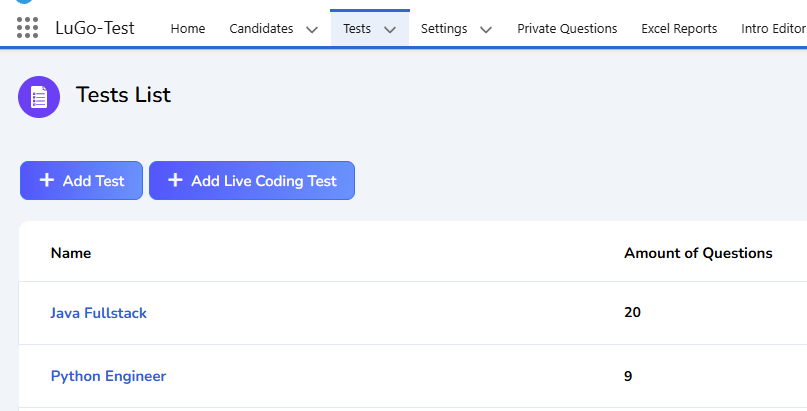
1. Go to the Tests tab and click on the name of the test you want to edit. This will take you to the Test Edit page.
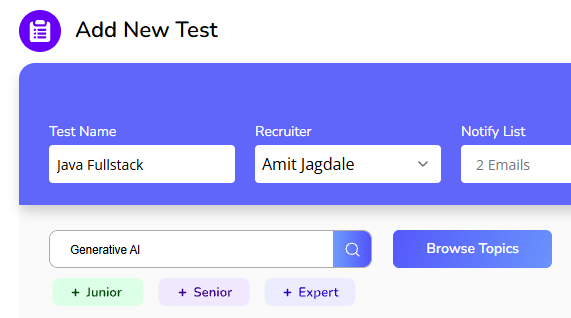
2. Type Generative AI
Choose the appropriate difficulty level based on the question type:
Junior - for GenAI Fundamentals / GenAI Non-Technical
Senior - for GenAI Consumers
Expert - for GenAI Creators
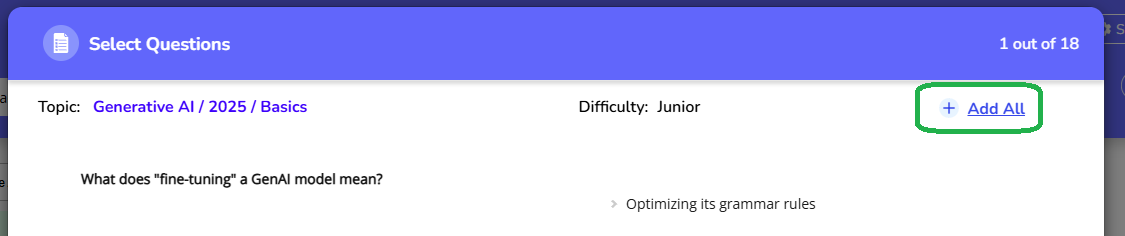
In the Questions Navigator, you will see the list of available GenAI questions.
Click Add All to include all GenAI questions in the test.
Press on Edit Settings
Make sure Enable Randomization is checked,
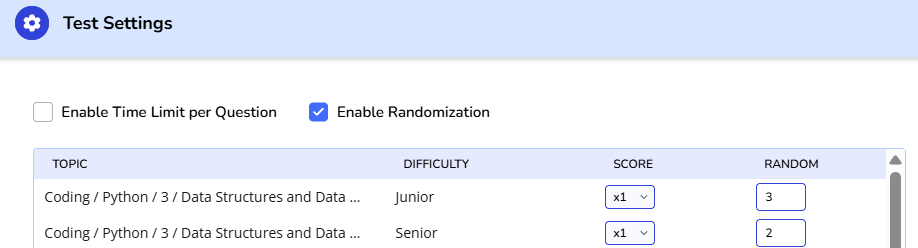
In the Technology / Generative AI row, make sure the Random field is set as follows:
- 2 for GenAI Non-Technical - Junior Level
- 3 for GenAI Fundamentals - Senior Level
- 5 for GenAI Consumers / GenAI Creators - Expert Level
To clarify, this will ensure that we randomly pick a certain number of questions from the GenAI questions.

Note: For GenAI Non-Technical and GenAI Fundamentals, we also recommend adding all the questions under: Technology -> AI Prompt Writing - Junior level
Press on Save Settings

3. Increase the Test Duration by adding 15 minutes to the existing time to accommodate the GenAI questions.

Press Save Test to apply your changes. Your test is now ready to use.
After making these changes, your test will include:
10 additional GenAI questions for each of the following (based on selection):
- GenAI Consumers
- GenAI Creators
- GenAI Fundamentals
Was this article helpful?
That’s Great!
Thank you for your feedback
Sorry! We couldn't be helpful
Thank you for your feedback
Feedback sent
We appreciate your effort and will try to fix the article