Introduction
Our platform allows you to tailor assessments to your specific needs by creating custom tests. This guide walks you through the process of building a personalized assessment from our repository, which includes a variety of coding challenges, multiple-choice questions, and private questions.
Getting Started
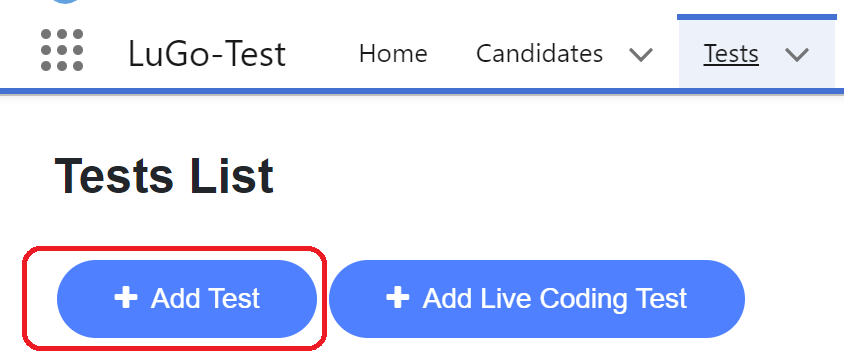
Begin by clicking on the "Add Test" button on the Tests tab. This action navigates you to the test creation page.
Fill Test Details
On the test creation page, you will need to provide the following details:
- Name: Enter the name of the test.
- Time (minutes): Specify the duration of the test in minutes.
- Expiration (days): Set the number of days the test link will remain valid.
- Notify List: Add email addresses of the employees who should receive notifications about candidates' results.

Adding Questions to the Test
Select Questions
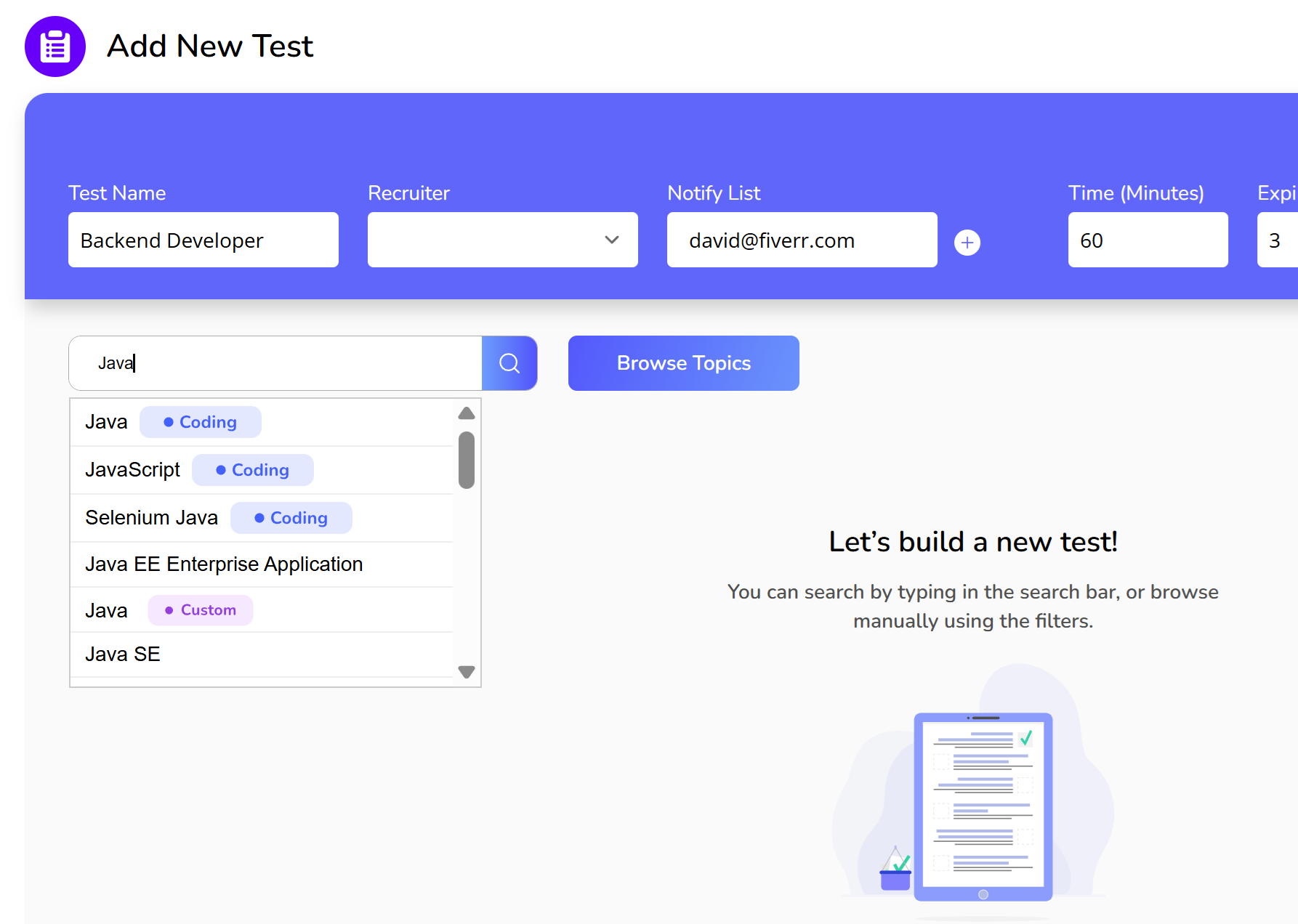
In the search box, type the name of the technology you want to add questions for (for example, Java).
A list of related topics will appear.
- Topics with “Coding” - Contain coding challenges.
- Topics without a caption - Contain multiple-choice questions.
- Topics with “Custom” - Contain your own customized questions.
Figure 1. Searching Java questions
Pressing on the relevant topic name, you will see the difficulty levels of this topic, for example, Junior / Senior

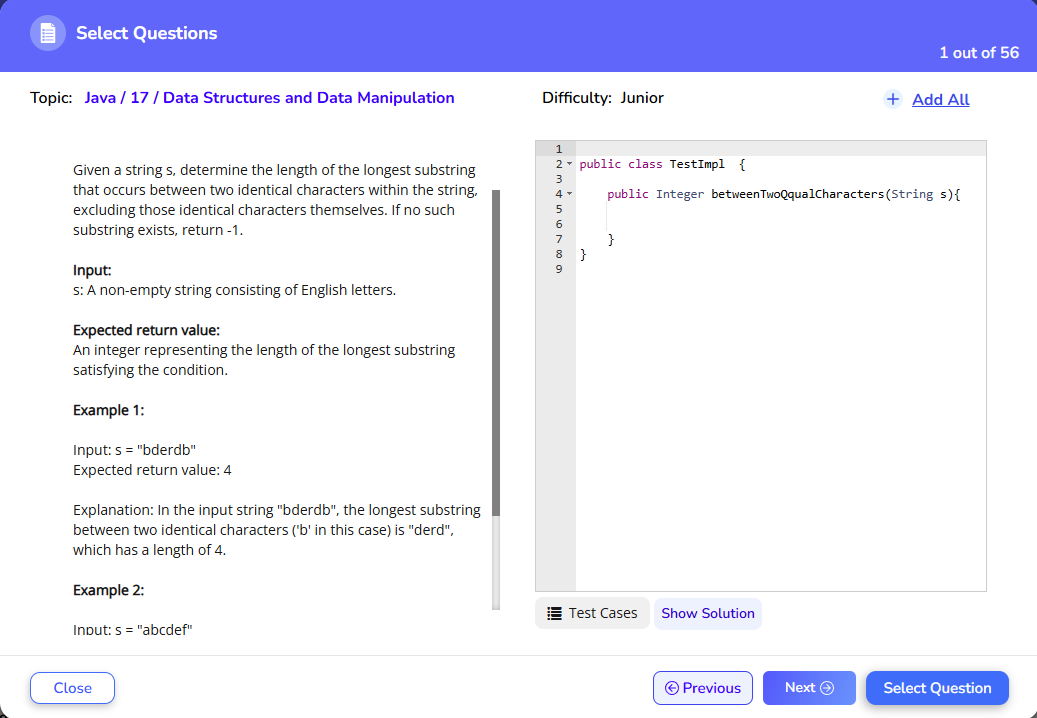
Selecting the relevant difficulty will open the questions browser, allowing you to choose the appropriate questions.
Figure 2. Browsing Java coding questions

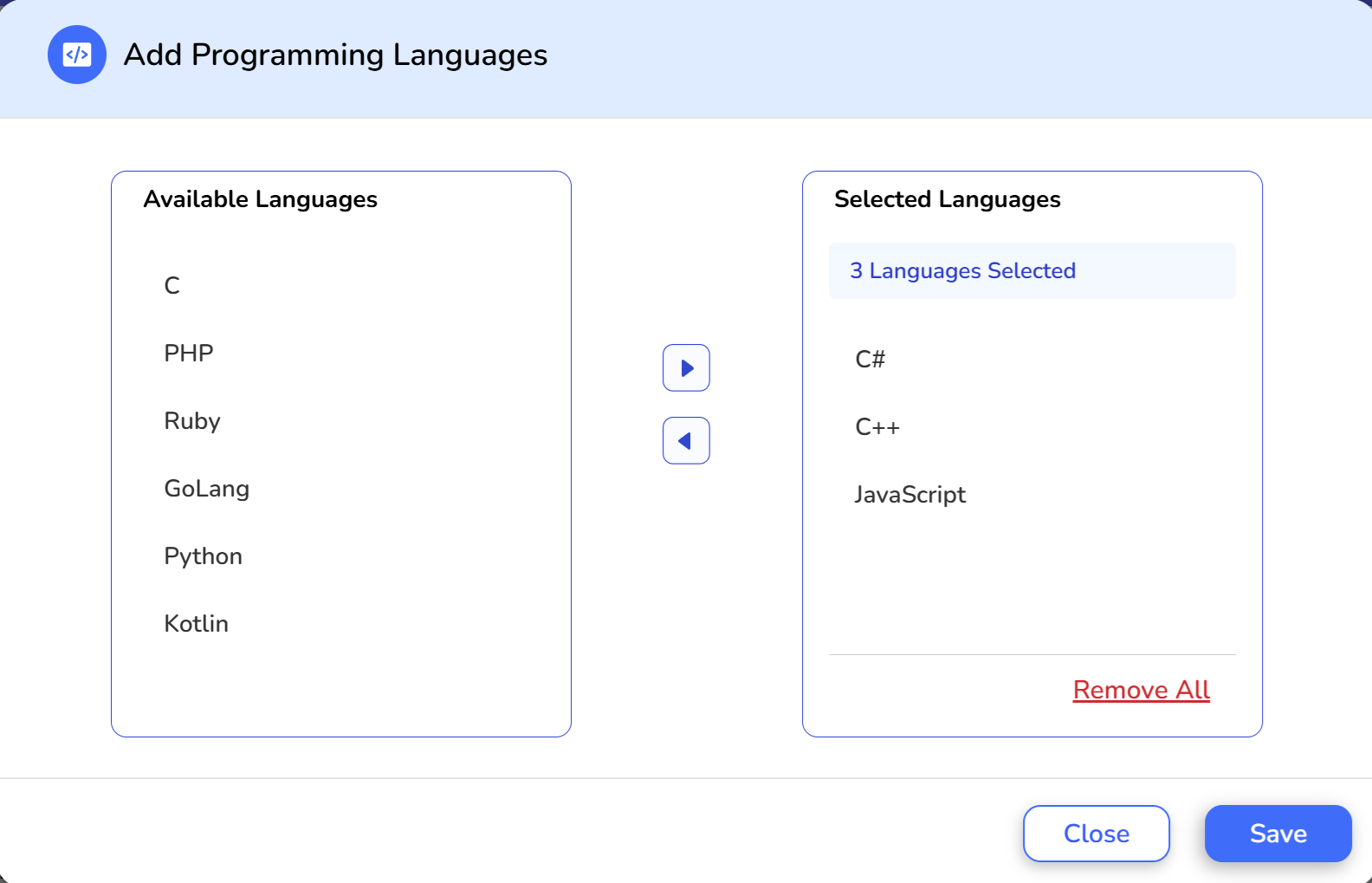
After selecting a question, it will be added to your test. You can then opt to "Add Languages" to offer candidates a choice of programming languages.

Figure 3. Adding C#, C++, and JavaScript as optional programming languages for the candidate to choose from (in addition to Java).
Browse by Topic
Instead of searching, you can also add questions to a test by browsing topics.
You will find three types of questions available: coding challenges, multiple-choice, or custom questions.
To start, press the "Browse Topics" button.

The following options will be shown.

For Coding Challenges:
- Under "Select Area," choose "Coding."
- You can select from over 23 coding technologies, such as C, Java, C#, and many more.
Figure 1. Select Java version 17 coding questions, and choose Junior difficulty.

A questions browser will appear, allowing you to select appropriate coding questions.
Figure 2. Browsing Java coding questions
For Multiple-Choice Questions:
- Explore different areas such as R&D, DevOps, IT, and more.
Under "Select Area," choose the relevant field, like Linux, for multiple-choice questions.
Figure 4. Browsing Linux 2.6 Junior-level multiple-choice questions

Figure 5. Browsing multiple-choice Linux questions

By pressing "Select Question" the current question will be added to your test.
For Private Questions:
- Select "Private Questions" under "Select Area" to add customized questions to the test.
The new test will contain all the questions you have chosen.
Proctoring
To maintain the integrity of online assessments, our platform offers several proctoring features to prevent cheating and unauthorized use of external aids like ChatGPT and Bard.
Press here to read how to define proctoring settings.
Test - Settings
Using the test settings, you can add random, different score weights for questions, set a passing score, and set time per question.
Press here to read how to define advanced settings.
Finalizing Your Test
Once you have selected all the relevant questions, click "Save" to finalize your test. The new test will contain all the chosen questions, ready to be assigned to candidates.
After creating the test, you can assign it to candidates; press here to read about it.
Was this article helpful?
That’s Great!
Thank you for your feedback
Sorry! We couldn't be helpful
Thank you for your feedback
Feedback sent
We appreciate your effort and will try to fix the article